Migration ROI & Strategy, NetSuite, Data Migration, QuickBooks
16 min Read
QuickBooks-to-NetSuite Migration: How to Move Your Data in 2026
A QuickBooks-to-NetSuite migration moves three things into your new system: your master data (the chart of accounts, customers, vendors, and items), your historical financial results, and the open transactions your team needs to keep operating on day one. The single decision that shapes the whole project is how much history you bring: an opening balance sheet with open transactions, summarized historical financials, or a full transaction-level load. In 2026, that decision carries more weight than it used to, because the depth of history you migrate now determines what your reporting, your audit, and NetSuite's AI tools can actually do later.
TL;DR
- NetSuite data migration from QuickBooks covers master data, historical financials, and open transactions. Treating it as one undifferentiated task is where most projects run into trouble.
- The first decision is depth of history: an opening balance sheet with open transactions, summarized historical financials, or full transaction-level detail. It drives scope, cost, and what you can do post go-live.
- In 2026, transaction-level history is what makes your data usable for audit readiness, granular reporting, and NetSuite's AI features on day one instead of years later.
- Transaction count is the main driver of migration scope and cost, so getting an accurate count early is what prevents budget surprises later.
- Validation is not optional. A trial balance tie-out, subledger reconciliations, and a clean first bank reconciliation are what let you defend the numbers to your auditors.
This guide walks through that decision, the full migration sequence, how to validate the result, and how to ensure a clean cutover. It is written for the CFOs, controllers, and ERP leaders who own the numbers after go-live.
What does migrating QuickBooks data to NetSuite involve?
"Data migration" is not one task. It is a sequence of distinct loads, each with its own rules, and the order matters. At a high level, a QuickBooks to NetSuite migration moves:
- Master data (lists): the chart of accounts, your segment values (departments, classes, and locations), customers, vendors, items, and employees. These records have to exist before any transaction can reference them.
- Historical financial statements: the summarized results of your prior periods, usually brought over as journal entries so you can run comparative reports without reopening QuickBooks.
- Open transactions: the in-flight items your team needs to keep working, such as open invoices, unpaid bills, uncleared bank items, and open purchase orders.
- Detailed transaction history (optional): the individual transactions behind your summary balances, loaded at the line level when you need audit detail, granular reporting, or AI-ready data.
Getting each of these right, in sequence, is what separates a migration that supports the business from one that quietly creates months of cleanup.
Map your QuickBooks data to a future-state NetSuite structure
Migrating is a mapping exercise, not a copy-and-paste. QuickBooks and NetSuite organize data differently, so every record must be converted to the structure NetSuite expects. This matters most for your master data and the segments that drive your reporting.
In NetSuite, reporting intent is expressed through a segment framework: subsidiaries, departments, classes, and locations, plus custom segments you can add. QuickBooks users often capture the same intent with classes, locations, or sub-customers, and those rarely map one-to-one. A structure that fits a smaller company usually needs to be rethought to report the way you want in NetSuite.
That redesign is an opportunity, not a chore. An ERP implementation is the best moment you will get to build a future-state segment structure for a growing business: one that supports the reporting, budgeting, and utilization views you will need in two or three years, not just the ones you run today. Decisions worth making now:
- Chart of accounts: consolidate and restructure rather than carrying over years of one-off additions.
- Departments, classes, and locations: define what each segment means and how it maps to your QuickBooks fields, so the meaning stays consistent across all periods. See segment structure basics.
- Customers and projects: if you relied on customers and sub-customers in QuickBooks, decide whether that reporting intent is better expressed through customers and projects in NetSuite, with segments driving consistency at scale.
Settle this before you map history, because every historical transaction has to land in the new structure. Redesign your segments after loading, and you risk breaking reporting, utilization metrics, and project visibility, and then having to rework data you already moved. Design the target first, map to it, then load. Keeping these decisions in a segment mapping file makes the load repeatable and easy to audit later.
How much QuickBooks history should you migrate to NetSuite in 2026?
For most companies, the answer is to bring in summarized historical financials and open transactions, adding full transaction-level detail only where audit, reporting, or AI plans justify it. There are three common approaches, and the decision drives everything downstream.
| Approach | What you load | Best when | Trade-off |
|---|---|---|---|
| Opening balance sheet plus open transactions | The opening balance sheet as of go-live, plus open AR, AP, bank, and PO items | When you only need financials starting in NetSuite and no need to look back | No historical financials in NetSuite. Prior-period reporting means going back to QuickBooks. |
| Summary plus open transactions | Summarized historical financials by period, plus open AR, AP, bank, and PO items | Most standard go-lives that want to transact immediately and keep comparative history | Transaction-level detail still lives in the legacy system. |
| Full transaction-level history | Detailed transactions are loaded at the line level across prior periods | Audit or IPO readiness, PE-backed rollups, and teams that want reporting and AI on their full history | Higher scope, so the count and the plan have to be right. This is where a specialist earns their fee. |
For a walk-through of a summary-level load, see loading financials and open transactions from QuickBooks to NetSuite. For a real example of a detailed load, see the full transaction import case study.
Why does 2026 change the answer?
For years, the default was summary balances plus open transactions. That works for high-level financial statement comparisons. It falls short the moment you want to do anything with your history.
Two things have shifted. First, audit and reporting expectations have moved toward transaction-level detail, especially for companies preparing for an audit, an IPO, or an acquisition where the buyer wants to see the underlying activity. Second, NetSuite's AI roadmap has raised the stakes in history. NetSuite's Exception Management documentation notes that its models are trained in production and typically require approximately 18 months of historical transaction data, since the system learns what "normal" looks like from your prior activity before it can flag anomalies during the close.
The practical consequence: a company that goes live with summary data only has no transaction history for those tools to learn from. It may wait until well into the following year before the data is deep enough to be useful. A company that brings structured, transaction-level history over at go-live gives its reporting and its AI tools something to work with immediately: customer payment patterns, vendor trends, revenue behavior, and operational seasonality.
Detailed transactions are not automatically the right answer for every company. The added complexity and cost should be justified by a clear business case: the reporting, audit, or AI value you will get from having that detail in NetSuite. The point is to make the depth decision on purpose, with your audit timeline and your reporting goals in view, rather than defaulting to summary because it is the cheapest line item in the implementation quote.
How do you scope a QuickBooks-to-NetSuite migration?
Data migration is scoped by volume, not by hours. The number of transactions moving from the legacy system into NetSuite is the primary driver of scope and price, so an accurate count up front is what turns an open-ended estimate into a firm, predictable one. This is an industry norm, not a quirk: NetSuite's own professional services teams and most implementation partners specify a data volume in their statement of work, defining exactly how much data they are contracted to migrate.
Transaction count is not the only factor. The number of legal entities and their configuration in the legacy system also drive complexity. A clean single-entity QuickBooks file is far simpler to migrate than a legacy system where subsidiaries were tracked in a field never designed to manage legal entities, which requires mapping and validation to satisfy NetSuite's subsidiary rules.
The way you pull that count differs by system. QuickBooks Online, QuickBooks Desktop, and NetSuite-to-NetSuite each have their own method for producing a reliable transaction count. Getting this right early prevents surprises later and lets you compare the three history approaches above on real numbers. See the transaction count guide for the step-by-step method by system.
The QuickBooks to NetSuite migration sequence, step by step
The loads have to happen in order because later records depend on earlier ones. Here is the sequence, with links to the detailed guide for each step.
Step 1: Migrate master data
Master records have to exist before any transaction can reference them, so this comes first. Load the chart of accounts, then customers, vendors, items, and employees.
The chart of accounts is the foundation, and QuickBooks and NetSuite structure GL accounts differently, largely because NetSuite is built for multiple subsidiaries and currencies. Address cleanup items before you import, using the chart of accounts considerations guide, and review how to import accounts from QuickBooks to NetSuite, noting the field-by-field differences.
One risk here is easy to miss: your source of truth for lists. Many companies keep their "correct" customer list in a CRM, not in QuickBooks, and the two rarely match cleanly. QuickBooks may list "Jim Smith," while the CRM lists "Smith, Jim." If your accounting data and your customer master come from different systems, plan time to reconcile them before any AR data can load. Decide where the correct customer list lives before you start, not midway through. Entity address imports follow the same reconcile-first pattern.
Step 2: Load the first batch of historical data
With master data in place, front-load your history. Close and lock each legacy period before you extract it, because a single late edit that never reaches NetSuite can turn your final validation into a reconciliation hunt. Then load that prior-period history into closed periods in NetSuite during the implementation.
Front-loading the bulk of your history early does three things: it gets the most time-consuming work out of the way, it puts real data in the system to test reporting against, and it gives your team a clear sense of the level of effort well before go-live.
Bring prior-period results over as journal entries so you can run comparative reports directly in NetSuite. There are two ways to structure these entries, point-in-time and net change, and the right choice depends on how your team closes the books. See two ways to prepare historical financials.
One technique matters for clean subledgers: because summary journal entries can post to AR and AP without a customer or vendor name, they can create a permanent "No Customer" or "No Vendor" line on your aging reports. Loading these summary lines against a fictitious customer and vendor, then reversing that balance when the open transactions load, keeps your detailed aging reports clean. The full mechanics are in the historical financials and open transactions guide.
Step 3: Load the final batch of historical data
Between the first batch and go-live, your legacy system continues to run, so new records and transactions accumulate. The final batch closes that gap. After the final legacy close, add any GL accounts, customers, and vendors created since the first batch, then load the remaining historical transactions through the go-live date.
Because the structure and mappings have already been proven in the first batch, this final load is faster and lower-risk, and it leaves NetSuite with your complete history right up to the cutover.
Step 4: Load open transactions
These are the in-flight items your team needs to keep operating: open receivables, open payables, uncleared bank transactions, and open purchase orders. Each has its own approach:
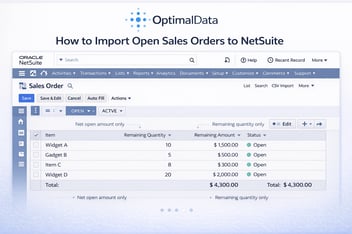
If you have an active sales pipeline at cutover, open sales orders and other in-flight transactions may also be in scope. Review three approaches to importing historical sales to set expectations early.
Step 5: Validate and tie out
Before you call the migration done, confirm that any suspense or fictitious accounts net to zero, then reconcile. Validation is its own step, covered next.
QuickBooks Online vs. QuickBooks Desktop: what changes?
The title of this guide says "QuickBooks," but the two editions behave differently, and the differences show up in extraction and mapping.
- Extraction: QuickBooks Online exports through the browser and its reporting layer. QuickBooks Desktop exports are often more complex to prepare to get clean, tabular data.
- Account types: account type names vary across QuickBooks Online, QuickBooks Desktop, and NetSuite, so you will need to translate them when preparing your import files.
- Structure: QuickBooks has no concept of a subsidiary. NetSuite does, and it enforces subsidiary and currency rules on bank and credit card accounts. That gap is usually where a Desktop or multi-entity migration needs the most planning.
Naming the edition early lets you plan the extraction correctly rather than discovering the difference during the load.
How do you validate and document a QuickBooks-to-NetSuite migration?
Validation is what lets you defend the numbers. At a minimum, complete these checks at the go-live date:
- Trial balance tie-out: confirm the NetSuite trial balance matches the legacy trial balance.
- Subledger tie-outs: confirm that AR and AP details in NetSuite reconcile with the legacy aging reports.
- First bank reconciliation: this is the step most often underestimated. The GL cash balance can tie to the legacy trial balance, even while the first reconciliation still fails, because reconciliation requires transaction-level alignment with the correct open, uncleared bank items, not just a matching summary balance. Loading those uncleared transactions correctly is what lets NetSuite's bank feed match cleanly from day one.
Confirm with your auditors what they need before you start, so your documentation matches their expectations. Together, a structured migration memo, the tie-outs above, and the AP and AR reconciliations form an audit-ready package. See how to validate and document your NetSuite data migration, and consider building a detailed trial balance with segment values so your close and audit reviews show department, class, and location detail natively.
Cutover: hard cutover vs. soft cutover, and connected apps
Two cutover decisions deserve attention before go-live.
Hard vs. soft cutover. A hard cutover moves everything to NetSuite at once and closes the legacy system. A soft cutover runs both systems in parallel for a period. Each has trade-offs for risk, timeline, and team workload. See hard vs. soft cutover strategies to choose the approach that fits your risk tolerance and close calendar.
Connected apps. If you use BILL or similar tools alongside QuickBooks, the timing of the initial sync into NetSuite is a real planning step. Coordinating that cut-over so AP operations stay clean from day one prevents duplicate or missing transactions. See the guide to migrating BILL from QuickBooks Online to NetSuite.
Common QuickBooks to NetSuite migration pitfalls
Most migration problems are avoidable with preparation. The ones that come up most often:
- No defined source of truth for lists. When accounting and customer data live in different systems, unreconciled records surface later as broken AR. On one large nonprofit migration, customer records were in an older CRM called Genius Education, while accounting records were in QuickBooks, and reconciling the two customer lists took the client team a long time.
- Overwriting system-generated accounts. NetSuite creates default accounts for a reason. Repurposing them for something else creates mapping problems that are hard to unwind. In one project, the implementation team renamed and repurposed the system-generated Undeposited Funds account, which caused problems when the client began entering customer payments that did not clear directly with the bank.
- Not locking the legacy period. A late edit in QuickBooks that never reaches NetSuite breaks your tie-out.
- Loading summary only when you need detail. The cheapest option at implementation becomes the most expensive when you later need history for audit, reporting, or AI and have to reload it.
- Treating the bank reconciliation as a summary tie. Cash can tie at the GL level and still fail to reconcile without transaction-level alignment.
- CSV import errors. They are common and usually fixable once you can read the error. Keep a reference like the common CSV import errors guide close during the load.
Who should run your QuickBooks-to-NetSuite migration?
There are three honest options, and the right one depends on your team's capacity and the depth of history you need.
- In-house: workable for a straightforward, summary-level move if your team has the time and experience with the NetSuite CSV import. The risk is pulling your accounting team off their day jobs during a close: one implementation firm has estimated that the data migration alone can take anywhere from 24 to more than 40 hours of a data analyst's time.
- Your implementation partner: many partners handle configuration and functional setup well, but data migration is often the most time-consuming and highest-risk part of the project, and not every partner specializes in it. The work may be staffed by junior consultants or an offshore team, so ask who will actually do it. Responsibilities vary, so clarify exactly what each team owns before you start: even NetSuite's own professional services typically load the prepared CSV templates for you but still expect your team to extract, clean, and prepare the data. Because full transaction-level detail adds work, a summary load is often the default, so if detailed history matters to you, ask for it explicitly.
- A data migration specialist: a focused specialist owns the extraction, mapping, load, and validation end to end, works behind the scenes so your partner keeps the relationship, and delivers audit-ready documentation with the numbers tied out.
OptimalData is a fixed-fee NetSuite data migration firm. We take full ownership of the migration, from template preparation through validation, price the work as a fixed fee based on your transaction count rather than by the hour, and hand your team an audit-ready package at go-live. Whether you need a clean summary-level load or a full transaction-level history ready for reporting and AI on day one, we can scope it against your real numbers first.
If you are planning a QuickBooks-to-NetSuite migration and want the history preserved cleanly without pulling your team off the close, let's talk.
Frequently asked questions
How long does a QuickBooks-to-NetSuite migration take?
It depends on the depth of history and the cleanliness of your data. A summary-level load can be completed quickly, while a full transaction-level migration takes more preparation. The planning and mapping usually take longer than the load itself. With the right preparation, even large loads can run in days rather than weeks. For example, OptimalData completed a detailed transaction migration for a Florida-based water technology company within several days of signing, though that was possible because the data mappings were straightforward. More often, the migration runs alongside the broader NetSuite implementation and is paced to the overall go-live timeline.
Can you migrate all of your QuickBooks transaction history to NetSuite?
Yes. Detailed, transaction-level history can be loaded at the line level, not just as summary balances. This is what supports audit detail, granular reporting, and NetSuite's AI features on your full history.
How is a QuickBooks-to-NetSuite migration priced?
Migrations are sized by transaction count. A fixed fee based on that count is more predictable than hourly billing, which is why an accurate count up front matters. Scope is defined before price.
Will the migration disrupt the go-live?
It should not, if the sequence and validation are handled correctly. A specialist can own the data work behind the scenes so the implementation team stays focused on configuration and the timeline stays on track.
What is the difference between migrating from QuickBooks Online and migrating from QuickBooks Desktop?
The two editions differ in how you extract data and in their account type naming. QuickBooks Desktop often needs more preparation to produce clean, tabular exports. Both map into NetSuite's subsidiary and currency structure, which QuickBooks does not have.
Do you need detailed transactions for an audit or for AI?
For an audit, transaction-level detail lets you show the activity behind your balances. For AI, NetSuite's tools generally need enough transaction history to detect patterns, so summary-only data limits what they can do until more history accumulates.
What happens to open invoices and bills at cutover?
Open AR, AP, bank, and PO items are loaded as open transactions so your team can keep operating on day one. Loading them correctly and reconciling them is a distinct step from bringing over historical financials.
Getting your QuickBooks to NetSuite migration right
A QuickBooks-to-NetSuite migration is not a single task, and the choices that matter most are made before anyone touches a CSV file: how much history to bring and how to structure your segments for where the business is going. Decide those deliberately, sequence the loads in order, and validate to a clean tie-out and a first bank reconciliation that holds. Get those decisions right up front, and the rest of the migration is execution: NetSuite becomes a system your team can run and report from on day one, instead of a fresh, empty ledger.

Paul Giese
Paul Giese is the founder of OptimalData Consulting, a firm specializing in NetSuite data migration for companies moving off QuickBooks, Sage, Great Plains, Xero, and other legacy systems. He's personally overseen 100+ migrations, preserving detailed transaction-level history for audit readiness, financial reporting, and post-acquisition continuity. He's also spoken on data migration at SuiteWorld.
LinkedIn