NetSuite, Open Transactions
Updated
Updated
11 min Read
Importing open accounts payable (AP) transactions is required to begin paying outstanding bills during a NetSuite implementation. You load each unpaid bill as an individual vendor bill offset to an OPENAP clearing account, then reverse that clearing balance with a single journal entry so the general ledger still ties to your historical trial balance. This article will discuss how to prepare and upload the closing AP balance from your legacy system to NetSuite. The screenshots I use are from QuickBooks Online. However, the approach will be the same, regardless of the legacy system.
This post is relevant for companies migrating data using a net change or summary trial balance approach for historical financial statements. Loading open AP transactions won't be necessary if you upload detailed transactions. Check out this article to learn how OptimalData Consulting loads detailed transactions.
Key Takeaways
- Load open AP as individual vendor bills offset to an OPENAP clearing account, not as a summary balance.
- Reverse the clearing balance and the fictitious AP vendor with one journal entry after the load completes.
- If your instance requires Department, Class, or Location, the reversing entry must carry those same segments or balances get stranded at the segment level.
- Set the posting period for every open AP transaction to the go-live period so the entire load reverses in a single entry.
Why do I need a suspense account?
You imported the monthly financial statements with a journal entry. This entry recorded the original GL impact for all historical transactions, including unpaid AP transactions.
We would not have individual transactions available to pay if we stopped there. We need to create our unpaid vendor bills. But this makes a posting transaction, which will generate a variance in our financial statement tieout. We need a method to import individual transactions into NetSuite without affecting the GL balances in both systems.
The solution is the suspense account. When we create the vendor bill, we will debit the suspense account. NetSuite will automatically post the credit to accounts payable. Then, after loading all open AP transactions, we will post a journal entry to debit accounts payable and credit the suspense account. This entry will offset the GL impact of the AP transactions and clear the fictitious vendor AP balance created by the net change entries.
What should I clean up before importing open AP?
Before loading open accounts payable into NetSuite, complete the following cleanup steps in your legacy system. Skipping these items almost always leads to reconciliation issues later.
Required pre-work
- Apply all offsets: Match vendor payments, vendor credits, and journal entries against open vendor bills wherever possible. Journal entries are frequently used to manage contra-AP balances and should not remain open unless intentionally unresolved.
- Clean up journal entries: Add an entity name to any journal entries missing one. If those entries net to zero after review, exclude them from the import entirely.
- Create an OPENAP clearing account: Set up a suspense account to capture the GL impact of the open AP load. This account is typically named OPENAP and configured as an equity-type account. It will be reversed after go-live.
Confirm your AP system of record
Before proceeding, confirm whether your AP process runs entirely in native QuickBooks or relies on a third-party platform such as BILL, Stampli, or Prendio.
Third-party AP tools introduce additional considerations, including approval workflows, system-of-record decisions, and vendor credit application logic. These items should be explicitly addressed in the NetSuite conversion strategy. If this applies to your environment, align early on how those systems will be handled during migration.
Final validation before loading
- Approve all vendor bills: Ensure no vendor bills remain in pending approval. If approvals cannot be completed in time, consider implementing a short freeze period in which no new unapproved bills are entered until after go-live. Bills left in pending approval status will not post their GL impact when loaded. This is covered in the approval status check further down in this article.
- Reconcile the subledger to the trial balance: Confirm that the AP subledger reconciles to the trial balance. In QuickBooks, this is typically straightforward due to its single-ledger design. In systems like Great Plains, Oracle Fusion, or Intacct, differences are more common and must be resolved or clearly documented before migration.
How to import your open AP transactions
1. Get the data from your legacy AP detailed aging report
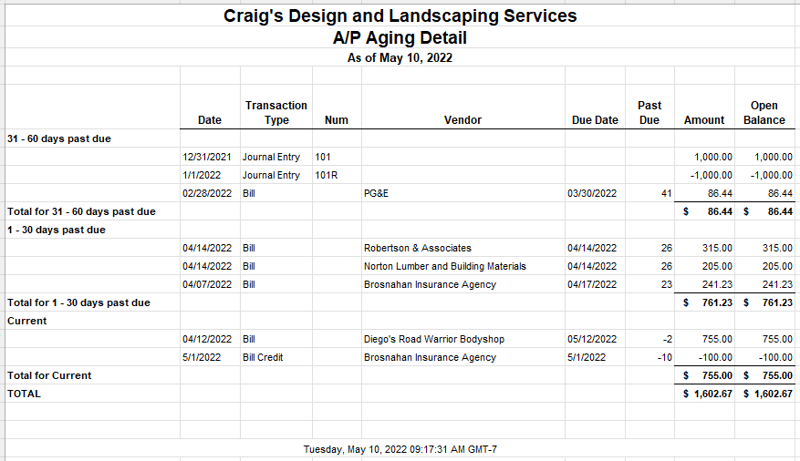
First, navigate to the AP detailed aging report. In QuickBooks Online, the out-of-the-box list should include all the needed data. However, if you have vendors in non-USD currencies, you might need to add the currency and open balance foreign-currency columns to the report.
Export the report to Excel. Remove the headers, footers, subtotal, and total lines, and blank columns. Finally, remove the amount column. We want to use the open balance column for bills you have partially paid. See the screenshots below for a before-and-after look.
The final check to validate that the file is complete and accurate is to compare our data file with the NetSuite and QuickBooks AP balances on the go-live date.
Before updating:
After updating:
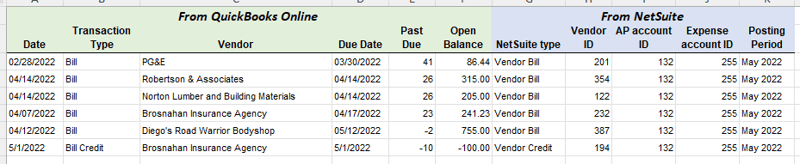
2. Add the NetSuite segment values to the data file
Next, we need to add the NetSuite-specific segment values to our file. Users should:
- Map the transaction type: Transactions impacting AP are roughly 1:1 with NetSuite. If you can't import a transaction type, I usually recommend loading it as a journal entry. Each NetSuite transaction type will need a separate CSV upload template.
- Map the vendors: The vendors with an existing balance should be present in QuickBooks and NetSuite. See my article on the segment map file for more details.
- Add the account: Add the AP and OPENAP suspense accounts to the upload file. Alternatively, you can hardcode the account when using a single AP account.
- Add any required segments: In some NetSuite instances, the Department, Class, or Location field might be required. In these cases, you must add a value for these segments to successfully load the transaction. To determine whether the field is required, navigate to a new vendor bill record and review the required fields.
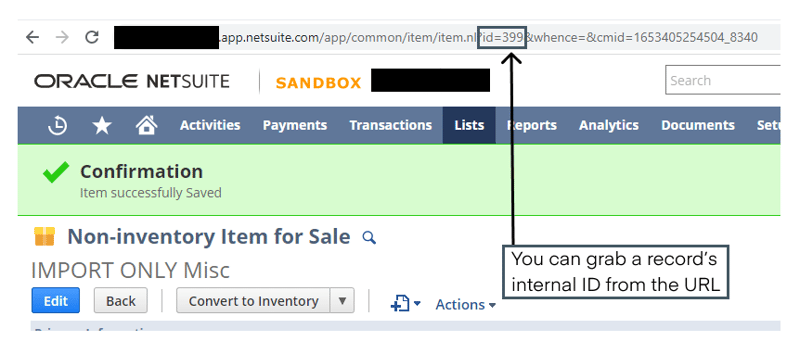
When I load CSV templates into NetSuite, I map them by internal ID rather than name. The templates are very specific, and the slightest difference will cause an error. The risk of a typo is lower when using the internal ID. You can find instructions to add internal IDs to NetSuite lists in my article on five NetSuite preferences you need to know. You can also find the internal ID in the URL for any NetSuite record.
3. Put together the transaction CSV upload files
We are ready to build the CSV upload files. Filter the data file by transaction type and copy and paste it into a new CSV file. Be sure to include any required fields in the template. To navigate to the upload page, go to Setup -> Import/Export -> Import CSV records.
Here are a few tips when working with CSV upload templates:
- Talk with your implementation partner to get the CSV upload templates. Or, you can download my transactional CSV template guide for NetSuite.
- Review the transaction form on the appropriate NetSuite page. Include any required fields (indicated with an asterisk) on the template.
- Always load a single transaction first to validate the upload worked and ensure the transaction didn't get stuck in a workflow. You can check this by reviewing the transaction status.
- Save the upload template. It will probably take a few attempts to load your transactions successfully. The templates are finicky!
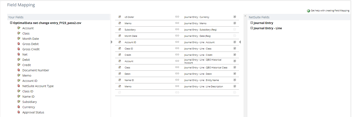
- Don't forget to adjust the upload file on the Field Mapping page to map by the internal ID. NetSuite defaults to mapping fields by name.
4. Validate that all vendor balances are correct
After loading, run the AP summary aging report from the legacy system and NetSuite. Use a SUMIF formula to compare the balances between each report. We have not addressed the fictitious AP vendor balance created by net change entries. All other vendors should match.
Across the QuickBooks-to-NetSuite migrations I have run, the two most common causes of an AP balance that will not tie are using the original bill amount instead of the open balance and exchange rate differences on foreign-currency bills.
5. Reverse the fictitious vendor's AP balance
Next, reverse the fictitious vendor's AP balance and the OPENAP suspense balance with a journal entry. The fictitious AP vendor must be included on the AP line of the entry so the subledger clears correctly. After this journal entry posts, the AP balance should match the legacy system, and the OPENAP suspense account should net to zero. See the example journal entry below.
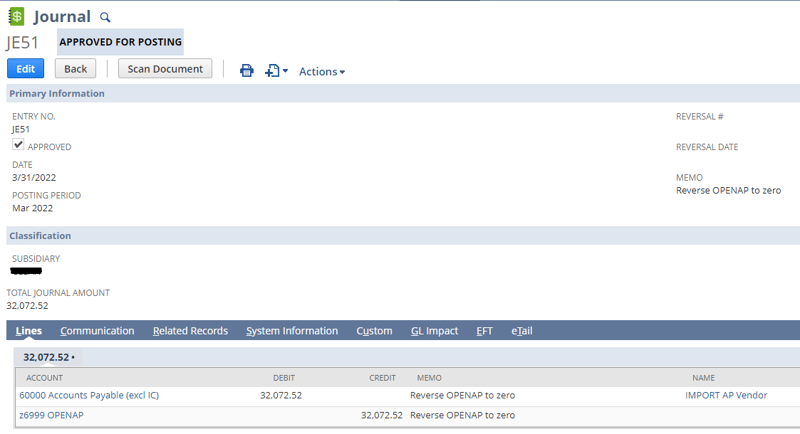
If your NetSuite instance requires segments such as Location, Department, or Class on transactions, the reversing journal entry must include those same segments. Posting a single summarized reversal will net the OPENAP suspense account to zero at the GL level, but leave balances stranded across individual segments. This typically surfaces when running segmented reports, such as a P&L by Location.
To avoid this, build a saved search that groups open AP balances by GL account and all required segments. Use the grouped results to post the reversing journal entry at the same level of detail. This ensures the OPENAP suspense account is fully cleared across all reporting dimensions, not just the total GL balance. This can also be a good check to validate that all of your open AP transactions were posted to the correct posting period.
6. Deactivate the appropriate records
Finally, you should deactivate the fictitious vendor record and the OPENAP GL account (assuming the balance is zero). Before deactivating the vendor account, navigate to the Pay Single Vendor page, select the vendor, and mark all the journal entries for payment. This action should result in a zero-dollar transaction with no GL impact. Once this is complete, deactivate the vendor.
What should I check after the open AP load?
Before wrapping up your open AP load in NetSuite, here are a few final checks to help prevent reconciliation issues post-go-live.
Why don't my vendor balances tie after loading open AP?
- Open balance vs. original amount: Confirm you used the open balance column from the legacy AP aging report, not the original bill amount.
- Foreign currency transactions: Review any open bills or credits denominated in foreign currencies. Variances are often caused by exchange rate differences. Validate both the open amount and the rate used at load.
- Approval status: Ensure all loaded bills and credits are in an Approved state. Pending approvals or workflows can block GL impact and skew balances.
- Tax handling: Confirm NetSuite did not automatically calculate or add tax to the imported bills. Any unexpected tax posting will cause the AP balance to drift.
Handling the OPENAP account post go-live
After go-live, the OPENAP clearing account is a common source of confusion and should be treated as locked. Do not edit the GL impact of vendor bills that post to OPENAP. Any manual changes will break the reconciliation between the OPENAP account and the Import AP Vendor.
Once the reversing journal entry has been posted and validated, the safest approach is to deactivate the OPENAP account to prevent accidental use.
If a vendor bill needs to be written off after go-live, do not use the OPENAP clearing account as the offset. Instead, reverse the bill using the original expense or balance sheet account it was coded to in the legacy system. Using OPENAP as the offset will leave a residual balance in the suspense account and distort segment or period reporting. The goal of the write-off is to reverse the original expense, not to affect the clearing account used only for migration.
Posting period control
Set the posting period for all open AP transactions to the go-live period, regardless of the transaction date. This ensures the entire OPENAP impact is recorded in a single accounting period and allows you to reverse it with a single journal entry.
To support this, adjust the Date/Period Mismatch setting:
- Navigate to Setup → Accounting → Accounting Preferences
- Set Date/Period Mismatch to Warn during the implementation
Once all historical data has been migrated and validated, you can revisit this setting and adjust it to your preferred production behavior. I walk through each option for this preference and how the posting period interacts with the transaction date in my article on the date and posting period in NetSuite.
Frequently asked questions about importing open AP
Do I need to load open AP if I am migrating detailed transactions?
No. If you are loading detailed historical transactions, the open vendor bills come across as part of that load, and no separate open AP step is required. The open AP process described here applies when you are using a net change or summary trial balance approach for historical financial statements.
What account type should the OPENAP clearing account be?
Configure the OPENAP clearing account as an equity-type account. It exists only to absorb the GL impact of the open AP load and is reversed to zero with a journal entry after go-live, so it should never carry a balance in production.
Can I write off a vendor bill that was migrated against the OPENAP account?
No. Reverse the bill against the original expense or balance sheet account it was coded to in the legacy system. Using OPENAP as the offset leaves a residual balance in the clearing account and distorts segment and period reporting, because the goal of the write-off is to reverse the original expense rather than to touch a migration-only clearing account.
When should I deactivate the OPENAP account?
Deactivate it as soon as the reversing journal entry has posted and you have validated that the account nets to zero across all required segments. Leaving it active after go-live invites accidental postings that break the reconciliation between the clearing account and the fictitious AP vendor.
What happens after the open AP load is complete?
The open AP load is the step that determines whether your first post-go-live check run works. Get the clearing account, the segments, and the posting period right, and AP reconciles on day one. Get any one of the three wrong, and you spend your first close chasing a stranded suspense balance through segment reports instead of closing the books.
The pattern generalizes. Open AR and open bank transactions follow the same shape: individual transactions loaded against a clearing account, then reversed in a single controlled entry that ties back to the legacy system. Once you have run it cleanly for AP, the rest of the open transaction load is the same discipline applied to a different subledger.
You might be interested in my other NetSuite data migration resources:
- My free QuickBooks Online to NetSuite YouTube Playlist, featuring step-by-step instructional videos from start to finish for a QuickBooks to NetSuite transition.
- How to import open accounts receivable transactions and open bank transactions into NetSuite.
- Nineteen solutions to common CSV upload errors in NetSuite, for when a load will not go through.
If you are planning a cutover and want the open AP and AR loads handled with the tie-out documentation your auditors will ask for, let's talk.





.png?width=352&name=NetSuite%20CSV%20Import%20Tool%20(1).png)