Open Transactions, CSV Uploads
Updated
Updated
7 min Read
Introduction
Open sales orders are one of the most operationally sensitive data sets to migrate into NetSuite.
Unlike historical GL balances, sales orders sit at the intersection of revenue, inventory, fulfillment, and billing. Errors here do not just impact accounting. They affect shipping, invoicing, and customer communication immediately after go-live.
This document outlines a practical, repeatable framework for migrating open sales orders while minimizing operational risk. The objective is continuity: sales teams keep selling, operations keep shipping, and finance keeps reconciling.
Before You Begin
Stop Processing Transactions
You cannot extract accurate open sales orders while the business is still processing transactions.
Before pulling data, align on a freeze window where:
-
No new sales orders are created
-
No shipments are processed
-
No invoices are generated against existing orders
Timing is critical. This is a common failure point when expectations are not clearly communicated.
Recommendation: Run at least one full test cycle in a sandbox environment. This allows teams to validate order counts, quantities, and amounts and surface edge cases before go-live. You do not need to stop processing transactions to load the test cycle. The purpose of the test cycle is to reduce the risk of errors when you do stop processing transactions at the go-live date.
Approach
Only import the net remaining amount on each sales order.
This includes:
-
Original order quantities minus fulfilled quantities
-
Original order amounts minus invoiced amounts
The goal is for NetSuite to continue processing the order where the legacy system stopped. You are not recreating historical activity.
Recommendation: If you want to preserve the original quantity or amount on the sales order, consider adding a line-level custom field to store this information.
Sales Order Cleanup
Before exporting data, clean up the legacy sales order list:
-
Close sales orders that will never be fulfilled
-
Cancel orders tied to inactive customers
-
Exclude obsolete or discontinued items
-
Consider limiting the scope to orders created within the last 12 months
Reducing scope lowers migration risk and post–go-live confusion. In addition, this reduces the volume of data you need to map.
Exporting the Legacy Sales Order List
QuickBooks Online
In QuickBooks Online, sales orders are labeled as Estimates.
The export should capture:
-
Estimate number
-
Customer
-
Transaction date
-
Item
-
Quantity
-
Rate
-
Amount
-
Status (open vs closed)
-
Remaining amount to bill or fulfill
The critical requirement is capturing the remaining open balance, not the original total.
QuickBooks Desktop
QuickBooks Desktop supports sales orders as a native transaction type.
Here is how you extract this data from QuickBooks Desktop:
-
Navigate to the “Open Sales Orders by Item” (Reports → Sales → Open Sales Orders by Item)
-
Click the “Customize Report” button. Don’t change the existing columns. Add the following columns to the report:
-
Trans #
-
Ship Date
-
Via
-
PO #
-
U/M
-
Sales Price
-
Item
-
Item Description
-
Class
-
(add any other segments)
-
NetSuite (NetSuite-to-NetSuite)
NetSuite-to-NetSuite migrations typically involve:
-
Moving sales orders between two separate NetSuite accounts, or
-
Moving sales orders between subsidiaries within a single account
If moving between subsidiaries in the same instance, confirm that:
-
Customers are enabled for the new subsidiary
-
Items are enabled for the new subsidiary
-
Pricing, tax codes, and fulfillment settings exist and are active
Custom body and line fields must be identified during planning, not during import.
Here are my step-by-step Instructions on extracting the open sales order list as a saved search:
-
Create a new Transaction Saved Search
-
Navigate to Reports → Saved Searches → All Saved Searches → New.
-
Select Transaction as the search type.
-
-
Set Filters
-
Type = Sales Order
-
Tax Line = No
-
Shipping Line = No
-
Subsidiary = (Optional, based on client structure)
-
Status = (Update as you see fit based on your criteria)
-
-
Name the Search
-
Search Name: Legacy Sales Order Saved Search
-
-
Configure Results Columns
Add the following fields in the Results tab:
-
Main Line
-
Date
-
Type
-
Document Number
-
Name
-
Memo (Main)
-
Item
-
Item Rate
-
Quantity
-
Quantity Fulfilled (Quantity Built, if applicable)
-
Closed Amount (Foreign Currency)
-
Amount Unbilled (Foreign Currency)
-
Item ID
-
Name ID
-
Department (if used)
-
Class (if used)
-
Subsidiary
Notes:
-
Add or remove custom fields as needed.
-
Currency and exchange rate fields are optional and client-dependent.
-
Projects are typically not applicable to this report.
-
Consider adding address information
-
-
Save and Run
-
Click Save & Run.
-
Review results to confirm only open, non-tax, non-shipping lines appear.
-
Steps to Import Sales Orders
1. Prepare the CSV Import Templates
Templates should align with NetSuite’s native sales order structure and typically include:
-
External ID or document number
-
Customer
-
Transaction date
-
Item
-
Quantity remaining
-
Rate
-
Amount remaining
-
Required custom fields
Clean templates reduce mapping errors and simplify testing.
2. Turn Off Auto-Numbering (Optional)
If legacy sales order numbers must be preserved, temporarily disable auto-numbering in NetSuite.
This helps with:
-
Customer communication
-
Reconciliation
-
Operational continuity during transition
Re-enable auto-numbering after the import is complete. Another potential option is to store the legacy sales order number in a custom header field.
3. Import a Test Sales Order
Start with a single test order that includes:
-
Multiple line items
-
Partial fulfillment or billing
-
Discounts and taxes
This validates that the data is working as expected before loading the full population of transactions, which can take significantly longer to process. You want to validate that:
-
No mapping errors on the CSV import template
-
Data loaded correctly
-
The transaction isn’t getting stuck in a workflow
Delete and reload the test transaction as needed.
4. Import the Full Population
Once the test order behaves correctly, load the full population. Resolve any CSV errors once the import is complete.
5. Validate the Orders
Validation should include:
-
Total remaining value vs legacy system
-
Spot checks of quantities and rates
-
Confirmation that fulfillment and invoicing work as expected
This step establishes trust in the new system.
Other Considerations
Taxes
Two common approaches:
-
Hard-code tax amounts from the legacy system on a separate “import only” tax line
-
Allow NetSuite to calculate tax natively
The correct choice depends on jurisdiction complexity and audit requirements.
Discounts
A common pitfall occurs when discounts have already reduced the remaining line amount in the legacy system.
If NetSuite re-applies the discount, amounts will be understated.
In NetSuite-to-NetSuite migrations, this often requires using the Amount (Gross) field instead of the net amount.
Items
Assembly and kit items introduce additional complexity.
If partially fulfilled prior to go-live, confirm that NetSuite can continue fulfillment without triggering inventory or BOM errors.
This should be explicitly tested in the sandbox.
Related Records
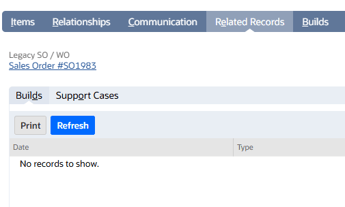
Sales orders often have related records, such as purchase orders, work orders, or customer deposits. Recreating these relationships in NetSuite for open sales orders is not possible via CSV import. It can be possible with scripts or by manually recreating these transactions.
A workaround I’ve used is creating a custom record that is linked to transactions. Assuming the related records were also migrated, you can add the relationship via the custom record. Finally, you can edit the form to display this custom record on the “Related Records” subtab.
Conclusion
Open sales order migrations are operational cutovers, not simple data imports.
When done correctly, teams experience a seamless transition. When done poorly, issues surface immediately across sales, operations, and finance.
Plan deliberately, test thoroughly, and prioritize continuity over speed. If you or your organization are moving to NetSuite, consider reaching out to the OptimalData team to assist with your data migration.