NetSuite, Chart of Accounts Mapping
8 min Read
A NetSuite segment map file is the document that translates every legacy GL account, class, department, and entity value into its NetSuite equivalent before you migrate historical data. Get it wrong, and your historical financials won't balance once they're loaded. In my opinion, this is the most important step in the data migration process.
In this article, I'll cover:
- Mapping segments between systems
- How to prepare a segment map file
- Tips & tricks for making this process as efficient as possible
A well-designed segment structure can remove duplicate GL accounts while giving FP&A and management more ways to report in NetSuite. On one community development nonprofit project, the client added several custom segments and cut their chart of accounts roughly in half. On another project, a trade association client added a Tradeshow segment and eliminated about 50 GL accounts duplicated across different tradeshows.
Key takeaways:
- A segment map file translates every legacy GL account, class, and entity value into its corresponding NetSuite segment value before migration.
- Build it in four steps: identify the legacy segment values used, map each one to NetSuite, review with stakeholders, then use it to prepare historical financials.
- Every legacy value must be mapped — even ones you're consolidating into a single NetSuite value — or historical financials won't balance.
- Reviewing the map file before loading data is the single biggest way to avoid budget overruns on a migration.
The segment structure is what improves NetSuite's reporting functionality. The segment map file is how you take that new structure and apply it to your old data, so you can run historical reporting using your new segment structure. You don't need to create every old segment value in NetSuite just to deactivate it. I've seen that done before, and it's bad practice.
Mapping segments between systems
The segment structure is central to an organization's financial reporting function. Setting up the segment structure is one of the first implementation tasks. If you're new to segments, check out my article on segment structure basics for an overview.
Different systems treat segments differently, and each company uses them uniquely to meet its business needs. For example, pre-revenue biotech organizations often use QuickBooks's "Customer" field to track "Program" spending. Two segments always map the same way, though:
- Legacy general ledger (GL) accounts map to NetSuite GL accounts
- Legacy entity names (customers and vendors) map to NetSuite entity names
Before you map individual segment values, you must plan how each segment maps between systems. Below are examples from real clients — as you'll see, different clients using the same system used segments in very different ways.
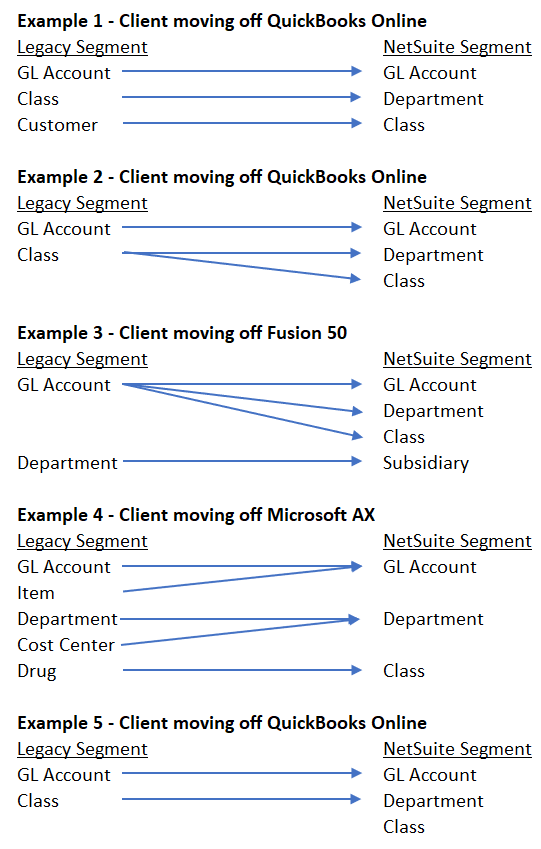
Once you've finalized how segments will map between systems, you're ready to prepare the segment map file.
I've done 40+ biotech migrations from QuickBooks to NetSuite, and no two clients set up their legacy segments the same way. Some use the QBO class to track both department and program spend. Others use the class for department spend only, and the customer segment for program spend. Still others put everything on the chart of accounts and don't use the class segment at all.
Every client is different, and there are certainly better ways to do this than others. But regardless of how it was set up in the legacy system, a proper map file lets you adjust that legacy data to fit into NetSuite's structure.
How to build a NetSuite segment map file
Before starting, create the NetSuite segment values with your implementation partner. See my article on segment structure basics for an overview.
1. Identify the Legacy Segment Values Used
The first step is identifying the population of unique values within each legacy segment used during the period you'll be migrating. For example, if you're bringing two years of financial history from QuickBooks Online (QBO), you must identify every GL account used over those two years.
There are two ways to get this population:
- Run the segment list. For example, run the Account list from QBO to get the full population of GL accounts. The benefit: you get the complete population. The downside: if you have a large number of inactive or unused accounts, you'll do extra work in the mapping exercise.
- Run a transaction list for the period. Export a transaction list and use Excel's remove-duplicates function to find the population of segments actually used. The benefit: only used segments show up. The downside: you may need to run several files for a large transaction volume, and you still need to account for any opening balance sheet accounts that have no activity.
2. Map the Legacy Segment Values to NetSuite Segment Values
Next, map each legacy segment value to its corresponding NetSuite segment value. The level of effort here depends on how much you're changing your segment structure. If you made no changes to your chart of accounts, everything will be a 1:1 match, and this step is easy. If you completely revamped your department structure, it will take more effort.
Below are two examples:
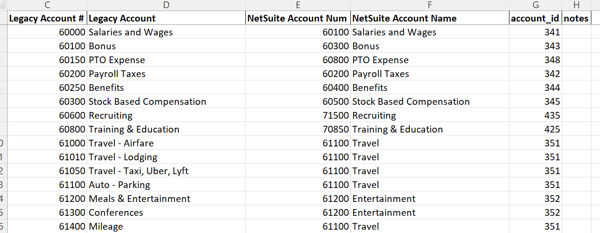
Example account-to-account map file:
Example account-to-class map file:

You must include every legacy segment value on the map file. You don't need to include every NetSuite segment value, since new NetSuite GL accounts won't exist in the legacy system, and that's fine. But if you exclude legacy segment values, the historical financials won't balance when you load them into NetSuite.
Clients often make the mistake of only mapping the active accounts in their current chart of accounts. The problem: if someone deactivated old accounts along the way, those won't show up on a COA report and won't get mapped. The team then has to go back and add those mappings later, after they've already found the gap. That's why I recommend pulling the segment values straight from the source reports (the transaction list, not just the active COA) so you capture everything that was actually used, active or not.
3. Review, Review, Review
Once the segment map file is complete, review it with all stakeholders. Making changes after data is loaded isn't impossible, but it can be challenging. Most migration projects go over budget because the client never reviewed the segment map file before load.
One trick to de-risk this step: store the legacy segment value on the line level of each transaction during the load. If a stakeholder catches a mapping error afterward, you can run a saved search based on that legacy value and correct it in NetSuite with an update CSV import, instead of hunting through transactions one by one.
4. Use the map file to prepare your historical financials
You're ready to prepare and validate historical financials using your segment map file, checking each imported transaction's legacy segment values against the map to confirm nothing was missed. See my article on preparing historical financials and open transactions for the next steps.
Tips and Tricks when Mapping Segments
Here are some tips and tricks to make this process easier.
- One-to-one only, in one direction. Every legacy segment value can only be mapped to a single NetSuite segment value — for example, "1000 Cash" can only map to one NetSuite account. You can map multiple legacy segment values to the same NetSuite value (see the next tip).
- Consolidate segment values in the map file. If you want to merge legacy segment values, map each one to the same NetSuite segment value. In the example below, four legacy travel accounts (airfare, car rentals, tolls, and parking) map to a single NetSuite account, "Travel and Airfare."

- Use the NetSuite internal ID. The internal ID is the best way to import data into NetSuite because it never changes. If your import uses the segment name instead, the name string must include all parent values, and any time a department name changes, you must update the map file. See tip one in this article to display the internal ID field on every list page in NetSuite.
- Make segment changes in the legacy system when possible. An ERP implementation is a good time to update the chart of accounts. Updating the legacy system first eases the tie-out process between systems. QuickBooks Online has a merge feature for segment values — I also have an article on mass-editing transactions in QBO.
- Handle mandatory fields deliberately. If a field wasn't mandatory in the legacy system but is mandatory in NetSuite, consider creating a general or historical NetSuite segment value like "00 - General." I recommend this over making the field non-mandatory for historical imports, because once a field is mandatory, NetSuite won't let you save the record unless every mandatory field is populated.
- Account for multiple subsidiaries. If you have multiple subsidiaries across multiple QBO accounts, complete a separate map file for each unique QBO instance. If you have multiple subsidiaries in one system, make sure each segment value is unique. Also remember that bank and credit card accounts can only be assigned to a single subsidiary.
I ran into this on a recent Sage 300 migration. The client had a complex subsidiary structure, but they'd been tracking it using a location field rather than a proper subsidiary field, since Sage 300 doesn't enforce subsidiary-level controls the way NetSuite does. Before we finalized the map file, we reviewed a full month of detailed transactions to confirm that data would fit NetSuite's subsidiary framework: bank and credit card accounts need to belong to a single subsidiary, one subsidiary can't pay another subsidiary's vendor bills, and intercompany activity needs proper due-to/due-from postings. If we'd mapped straight from the legacy location field without catching this, the historical transactions would have landed in NetSuite in ways the system wouldn't actually allow.
FAQ
What is a NetSuite segment map file?
A NetSuite segment map file is a document that lists every legacy segment value (GL accounts, classes, departments, entities) and the corresponding NetSuite segment value it should map to during migration.
Do I need to map every legacy segment value?
Yes. Every legacy segment value used during the migration period must appear on the map file, even if several legacy values consolidate into one NetSuite value. Skipping a legacy value will cause historical financials to be out of balance once loaded.
What happens if I skip reviewing the segment map file before loading data?
Skipping the review is one of the most common reasons migration projects go over budget, since fixing mapping issues after data is already loaded is far more difficult than catching them beforehand. This is exactly why storing the legacy segment value in a custom field at the line level pays off: if a review after load turns up a mapping error, you can find every affected transaction with a saved search and fix it with an update CSV import, instead of re-loading the data.
Can multiple legacy segment values map to a single NetSuite value?
Yes. You can consolidate several legacy values into one NetSuite value (for example, merging several travel-related accounts into a single "Travel and Airfare" account). The reverse isn't allowed — each legacy value can only map to one NetSuite value.
Closing
Your NetSuite segment map file is essential to a successful NetSuite implementation. This document determines how your historical financials will be loaded into NetSuite, and care taken here pays off throughout the rest of the project. When the map file is built and reviewed correctly, your team gets clean, structured historical data in NetSuite from day one, ready to support reporting and any AI-driven analysis NetSuite rolls out next, instead of data still scattered across a legacy system and spreadsheets.